Android Malware Response: Immediate Containment and Recovery Steps
Restoring a factory backup often reinstalls the malicious application, turning your recovery effort into a vector for immediate reinfection if you skip verification.
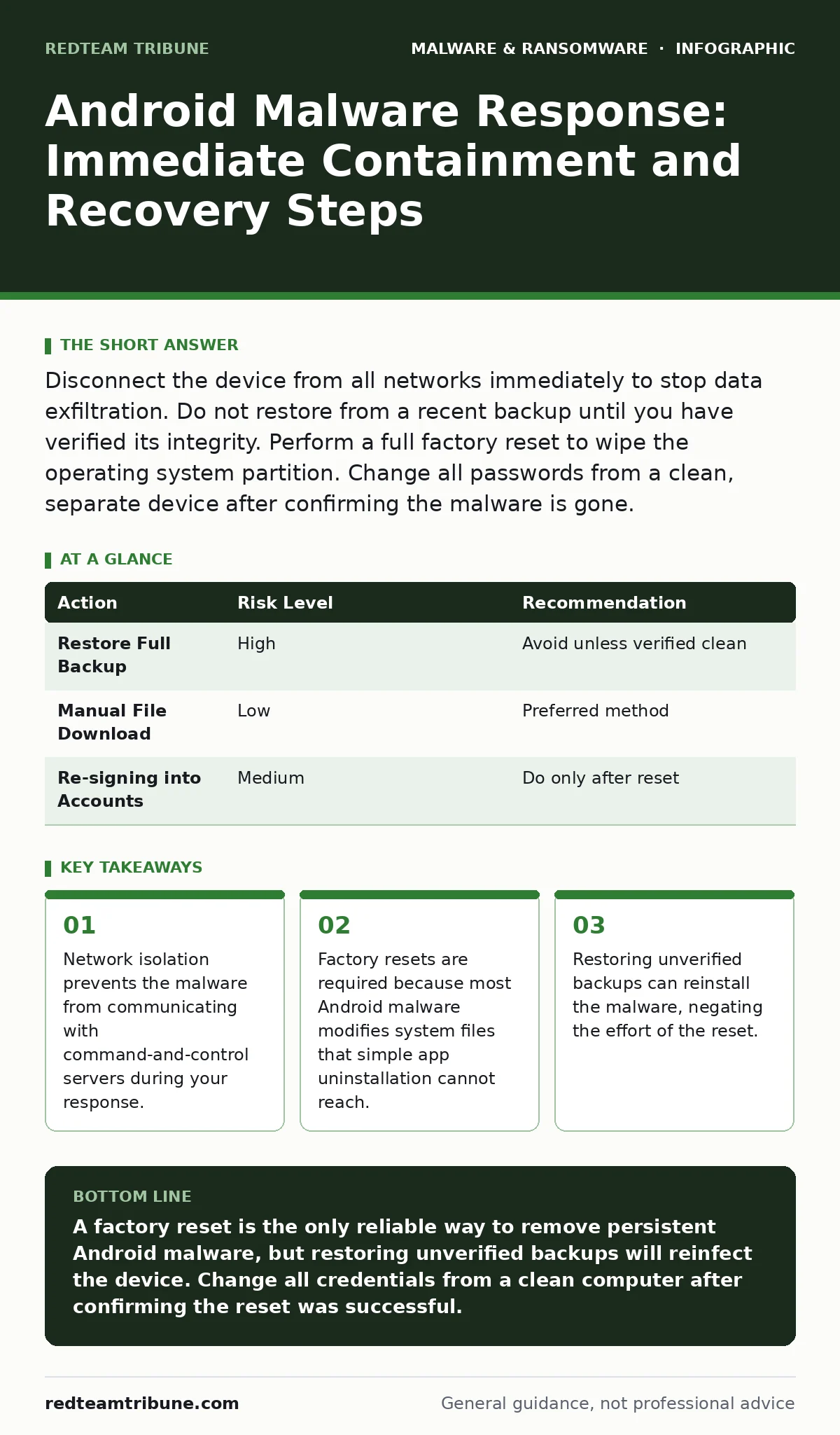
Disconnect the device from all networks immediately to stop data exfiltration. Do not restore from a recent backup until you have verified its integrity. Perform a full factory reset to wipe the operating system partition. Change all passwords from a clean, separate device after confirming the malware is gone.
First hour
Your primary goal in the first sixty minutes is containment, not cure. Malware on Android often operates as a background service, meaning the application icon may disappear while the malicious code continues to execute. You must sever the device’s ability to communicate with external servers.
- Disconnect from Wi-Fi and Cellular Data. Toggle Airplane Mode on immediately. This stops the malware from sending stolen credentials, contacts, or financial data to its operator. It also prevents the malware from receiving new instructions, such as commands to wipe its own traces or to propagate to other devices on your local network.
- Do Not Use the Device for Authentication. If the malware includes keyloggers or screen recording capabilities, any password you type now is compromised. Do not check email, banking, or social media accounts on the infected device.
- Check for Device Administrator Privileges. Many banking trojans and ransomware variants request "Device Administrator" rights. This permission allows the malware to prevent itself from being uninstalled and to lock the screen. Go to Settings, search for "Device admin apps," and deactivate any unfamiliar entries. If you cannot disable them, the malware has deeply embedded itself, making a factory reset mandatory.
- Airplane Mode activated
- Verified no unknown Device Admin apps are active
- Refrained from entering any passwords
First day
Once the device is isolated, you must assess the scope of the infection. Android’s sandboxing model usually limits what an app can do, but malware often exploits permission models or uses accessibility services to bypass these restrictions. Accessibility services are designed to help users with disabilities but can be abused to read screen content and simulate taps.
You need to determine if the malware has persisted across a reboot. If the device was already off, turning it on while in Airplane Mode is safe. If it was on, leave it on but disconnected. Do not attempt to use dynamic malware analysis techniques yourself, as this requires specialized sandbox environments. Instead, rely on the operating system’s built-in security features.
Check your installed applications for recent additions or apps with generic names like "System Update" or "Service." Look for apps that have no icon or are hidden in the "Disabled" section of your app list. If you find them, note their package names but do not attempt to uninstall them yet. The malware may have installed multiple components that reinforce each other.
First week
Recovery requires a clean slate. Most Android malware cannot survive a proper factory reset if you clear the data partition correctly. However, the process has nuances. If you simply reset the device and then restore your data from a cloud backup or local SD card, you may reinstall the malware along with your photos and contacts.
- Perform a Factory Reset. Go to Settings, System, Reset options, and select "Erase all data." Ensure you choose the option that wipes internal storage. This deletes the user data partition where most malware resides.
- Verify the Reset. After the device reboots, set it up as a new device. Do not sign into your Google account yet. Check for any pre-installed apps that you do not recognize. If the device is clean, proceed to the next step.
- Restore Data Selectively. Do not restore a full system backup. Instead, manually download photos and documents from cloud storage. For contacts, export them as a CSV file on a clean computer, scan that file for anomalies, and then import it. This prevents the reinstallation of malicious applications that were included in your previous backup.
| Action | Risk Level | Recommendation |
|---|---|---|
| Restore Full Backup | High | Avoid unless verified clean |
| Manual File Download | Low | Preferred method |
| Re-signing into Accounts | Medium | Do only after reset |
Who to tell
Silence allows the attacker to maintain access. If the malware accessed financial apps, contact your bank immediately from a different device. Inform them that your Android device was compromised so they can flag potential fraudulent transactions. If the device was used for business communications, notify your IT security team. They may need to rotate credentials for any enterprise accounts accessed from that device.
If you suspect the malware was introduced via a malicious email attachment, understand that email attachment scanning is not foolproof. Sophisticated attackers use techniques like macro malware or encrypted archives to bypass filters. Report the incident to your email provider to help block similar attempts for others.
See also: Stop Computer Worms: The Network Containment Checklist · Stop Log Tampering: A Defensive Checklist for Integrity
How to stop a repeat
Prevention is about reducing the attack surface. Android’s open nature allows for sideloading, which is the installation of apps from sources other than the official Google Play Store. While convenient, sideloading bypasses Google Play Protect’s automated scanning. Disable "Install unknown apps" permission for all browsers and file managers unless you have a specific, trusted need for it.
Update your operating system regularly. Security patches address vulnerabilities that malware uses to escalate privileges. If your device no longer receives updates, the risk of infection increases significantly because known exploits remain unpatched. Consider using extended detection and response (XDR) solutions if you manage multiple devices, as these tools correlate signals across endpoints to identify anomalies that single-device scanners miss.
Be wary of apps that request excessive permissions. A flashlight app should not need access to your contacts or microphone. Review permissions regularly in your settings. If an app behaves strangely, such as draining battery quickly or generating high data usage, investigate it immediately. Understanding malware obfuscation helps you recognize that malicious code often hides behind legitimate-looking interfaces.
Key takeaways
- Network isolation prevents the malware from communicating with command-and-control servers during your response.
- Factory resets are required because most Android malware modifies system files that simple app uninstallation cannot reach.
- Restoring unverified backups can reinstall the malware, negating the effort of the reset.
A factory reset is the only reliable way to remove persistent Android malware, but restoring unverified backups will reinfect the device. Change all credentials from a clean computer after confirming the reset was successful.
Frequently asked questions
Can I remove Android malware without a factory reset?
Only if the malware is a simple app with no system-level permissions. Most modern malware uses accessibility services or device admin rights that require a full wipe to remove safely.
Does Airplane Mode stop the malware from running?
No, it only stops communication. The malware continues to run in the background, potentially recording keystrokes or taking screenshots until you wipe the device.
Is my data safe after a factory reset?
The malware is removed, but if you restored a backup that contained the malicious app, the infection returns. You must restore files manually, not via a full system backup.
Should I use a third-party antivirus on Android?
For most users, Google Play Protect and careful app installation habits are sufficient. Third-party apps can sometimes introduce false positives or privacy risks themselves.
How this guide was produced: written by the RedTeam Tribune editorial team with AI assistance, checked against the public references listed below, and reviewed when the facts change. See our editorial policy or report an error.