Macro Malware Warning Signs You Miss and How to React
Most macro malware hides behind legitimate-looking prompts, tricking users into bypassing security controls through social engineering rather than technical exploits.
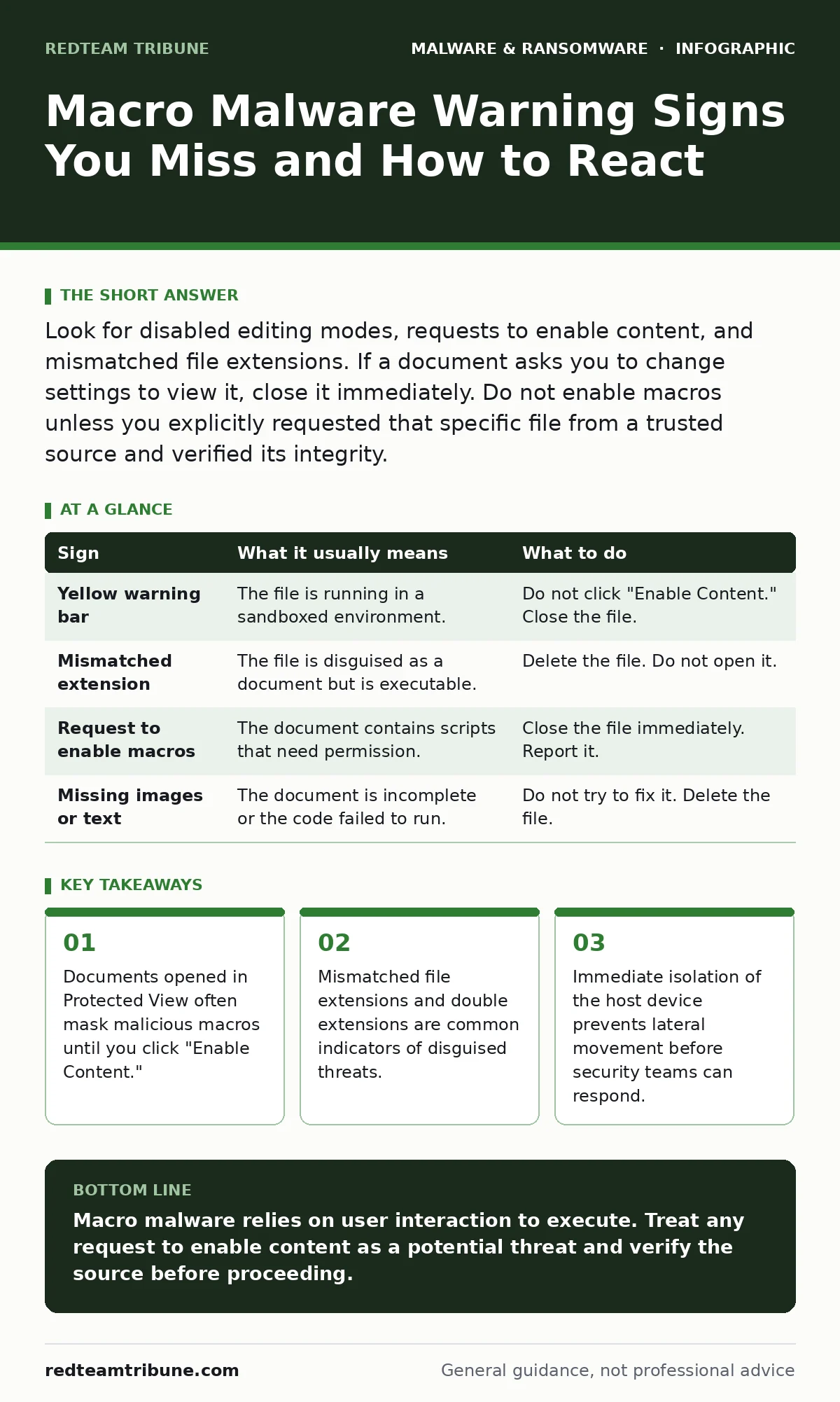
Look for disabled editing modes, requests to enable content, and mismatched file extensions. If a document asks you to change settings to view it, close it immediately. Do not enable macros unless you explicitly requested that specific file from a trusted source and verified its integrity.
The First Red Flag: Protected View
When you open a document from an email or a download, modern office applications often display it in a restricted mode. This state is designed to prevent automatic execution of code. You will see a yellow bar at the top of the window. It warns you that the file could contain harmful content.
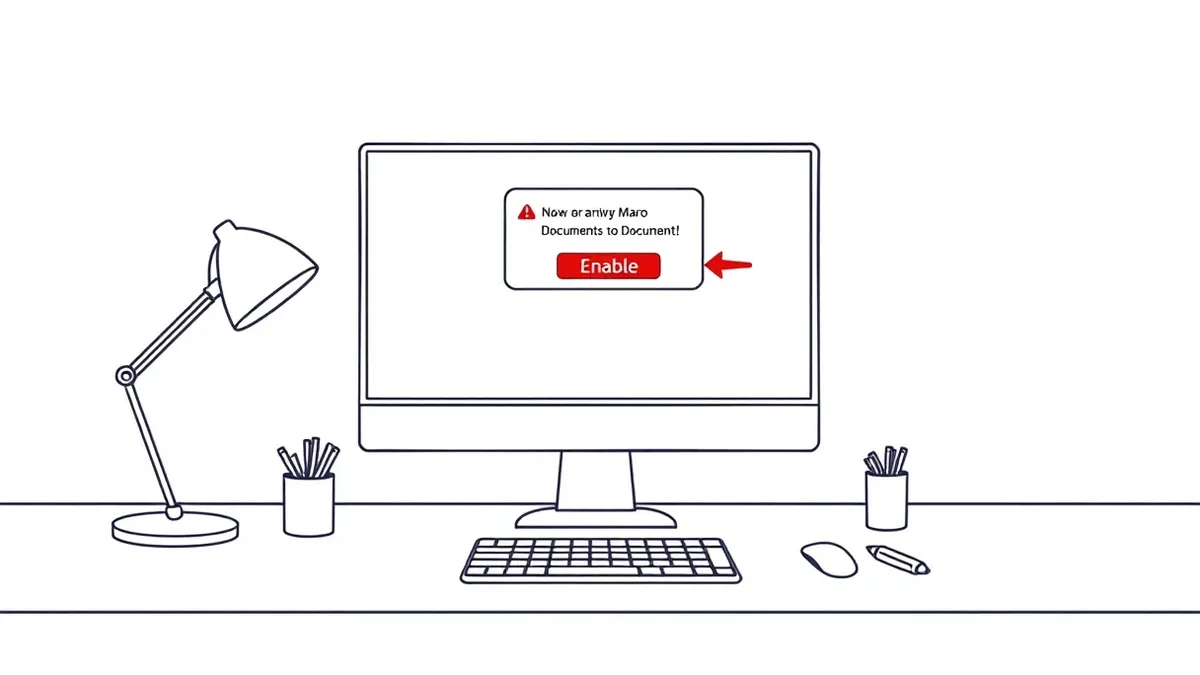
The malware relies on your assumption that the document is safe because it opened. The attacker wants you to click "Enable Content." This action removes the restrictions. It allows the embedded script to run. If you do not click that button, the macro remains dormant. The threat stays contained within the file.
Recognizing Mismatched Extensions
Attackers frequently disguise executable files as harmless documents. They rely on the operating system hiding the true extension. A file might appear as "report.pdf" but is actually "report.pdf.exe". The system displays only the first part.
You can reveal the true nature of the file. Change your view settings to show all file extensions. If you see two extensions, the file is likely malicious. Even if there is only one extension, check if it matches the expected type. A text document should end in docx, not vbs or js. This simple check stops many initial infections.
The Social Engineering Prompt
The text inside the document often tries to convince you to enable macros. It might claim the file is corrupted. It might say you need to enable content to view the images. It might mimic a system error. These messages are designed to create urgency.
Legitimate documents do not require you to change security settings to read them. If a file needs special permissions to display text, it is not a standard document. It is a vehicle for code. Do not trust the text inside the file. Trust the behavior of the application. The application knows when content is unsafe.
| Sign | What it usually means | What to do |
|---|---|---|
| Yellow warning bar | The file is running in a sandboxed environment. | Do not click "Enable Content." Close the file. |
| Mismatched extension | The file is disguised as a document but is executable. | Delete the file. Do not open it. |
| Request to enable macros | The document contains scripts that need permission. | Close the file immediately. Report it. |
| Missing images or text | The document is incomplete or the code failed to run. | Do not try to fix it. Delete the file. |
Hidden Technical Indicators
Some signs are visible only to those who look closely. You might notice the document lacks a proper header. Or the metadata shows a different author than expected. These are subtle clues. They indicate the file was generated by a tool, not a person.
Another sign is the presence of VBA code that is obfuscated. This means the code is scrambled to hide its purpose. You cannot read it easily. If you have access to dynamic malware analysis tools, you can see the behavior. The tool runs the file in a safe environment. It records what the file tries to do. This reveals the intent without risking your system.
Immediate Response Steps
If you suspect a file is malicious, act quickly. Do not wait for confirmation. Isolate the device from the network. This stops the malware from spreading to other systems. It also prevents it from calling home to the attacker.
Report the incident to your security team. Provide the file and the email that delivered it. Do not try to analyze it yourself unless you have the proper tools. Incorrect handling can destroy evidence. It can also trigger the malware prematurely. Let the experts handle the technical details.
Preventing Future Infections
You can reduce risk by adjusting your security settings. Disable macros for all documents by default. This forces you to manually enable them for trusted files. It creates a friction point. That friction saves you from accidental clicks.
Train users to recognize these signs. They need to understand why they should not enable content. They need to know what a mismatched extension looks like. Regular training reinforces these habits. It makes the correct response automatic.
The Role of Advanced Detection
Traditional antivirus might miss new macro malware. It relies on known signatures. If the code is new, the antivirus does not recognize it. This is where extended detection and response (XDR) helps. It looks for unusual behavior.
If a document tries to launch a command prompt, that is suspicious. XDR flags this action. It alerts the security team. It can also block the action automatically. This layer of defense catches threats that slip past initial filters. It provides a safety net for zero-day attacks.
Key takeaways
- Documents opened in Protected View often mask malicious macros until you click "Enable Content."
- Mismatched file extensions and double extensions are common indicators of disguised threats.
- Immediate isolation of the host device prevents lateral movement before security teams can respond.
Macro malware relies on user interaction to execute. Treat any request to enable content as a potential threat and verify the source before proceeding.
Frequently asked questions
Can I safely enable macros if I know the sender?
Only if you explicitly requested the file and verified its integrity through a separate communication channel. Trust is not a security control.
Do all office documents contain macros?
No. Most standard documents do not use macros. If a simple text document asks for macro permissions, it is highly suspicious.
How do I check for hidden extensions?
Change your folder view settings to show file name extensions. This reveals the true file type, preventing confusion between documents and executables.
What is the difference between a macro and a script?
A macro is a series of commands stored in a document. A script is a standalone file. Both can execute code, but macros are embedded in documents, making them harder to detect.
How this guide was produced: written by the RedTeam Tribune editorial team with AI assistance, checked against the public references listed below, and reviewed when the facts change. See our editorial policy or report an error.