Detect Screen Locker Ransomware: Signs, Logs, and Blind Spots
Screen lockers often hide in plain sight by mimicking system utilities, making process parentage and memory behavior the only reliable indicators before the lock screen appears.
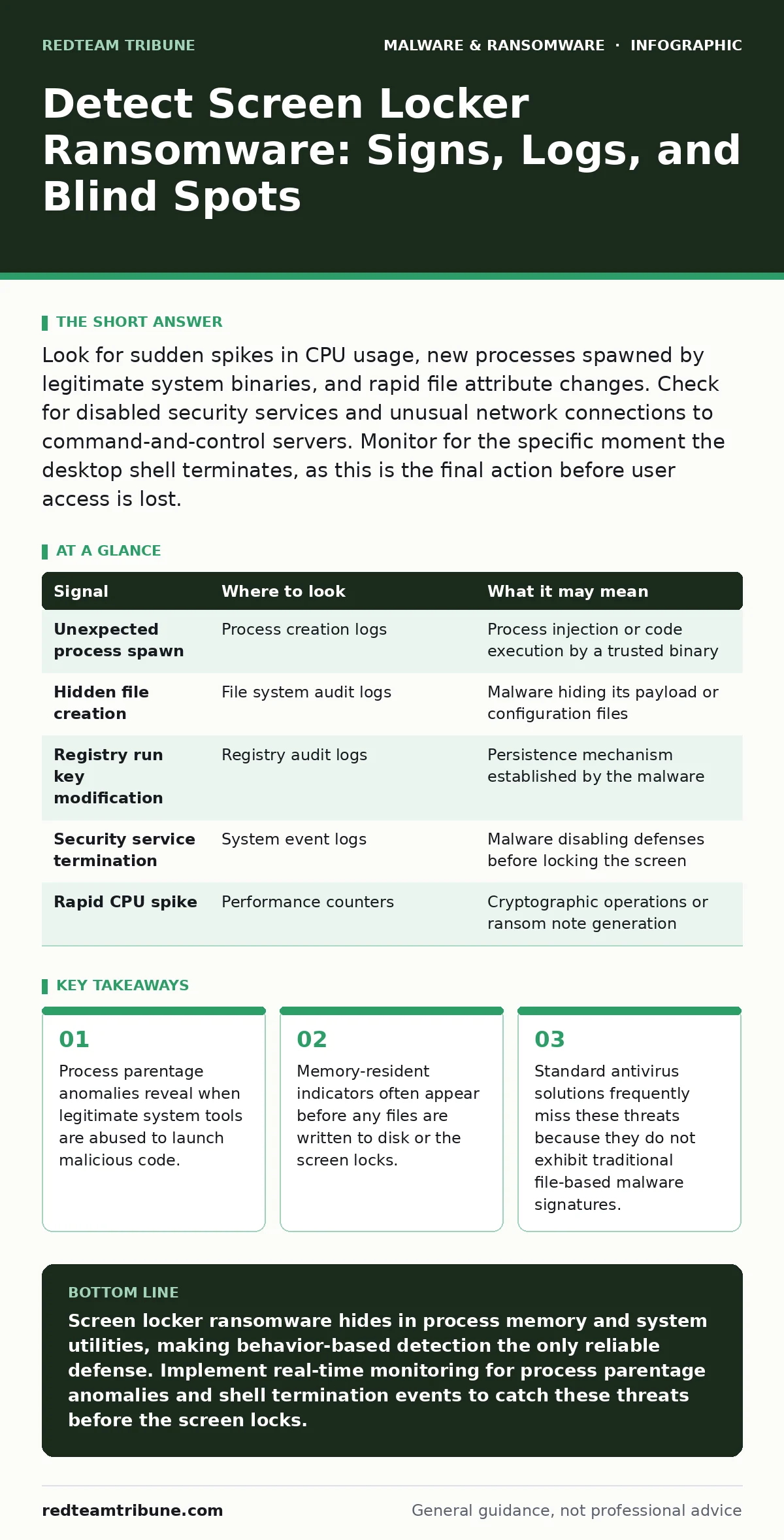
Look for sudden spikes in CPU usage, new processes spawned by legitimate system binaries, and rapid file attribute changes. Check for disabled security services and unusual network connections to command-and-control servers. Monitor for the specific moment the desktop shell terminates, as this is the final action before user access is lost.
The Pre-Lock Behavior Window
Screen locker ransomware does not strike instantly. Before the user sees the demanding message, the malware must establish persistence and disable defenses. You are looking for a narrow window of activity where the system behaves normally to the user but chaotically to the monitor. The malware typically injects itself into a running process to avoid detection. This technique, known as process injection, allows the malicious code to run under the guise of a trusted application.
You must watch for legitimate system processes spawning unexpected child processes. For example, a web browser or a document editor should not launch a command prompt or a system utility that modifies security settings. If you see a trusted binary executing code that has no business running in that context, you have likely found the initial infection vector. This behavior is distinct from standard software updates or administrative tasks.
Process Parentage and Injection
The most reliable indicator of a screen locker in its early stages is an anomalous process tree. In a healthy system, the parent-child relationship between processes follows a strict hierarchy. When malware uses process injection, it breaks this hierarchy. The malicious code runs within the memory space of a legitimate process, such as the Windows Explorer shell or a system service.
To detect this, you need to examine the parent process ID for every new process creation. If a process that should only handle graphics or user interface tasks suddenly creates a process that modifies system files or disables network adapters, raise an alert. This misalignment is a strong signal of compromise. Traditional signature-based detection often fails here because the parent process is legitimate, and the child process may use generic names to blend in.
File System and Registry Changes
Before locking the screen, the malware must ensure it can restart if the system reboots. It does this by modifying the file system and the registry. You should monitor for rapid changes to file attributes, particularly the hidden and system flags. Malware often hides its executable files by marking them as system files, making them invisible to standard directory listings.
Check for new entries in the run keys of the registry. These keys control which programs start automatically when the user logs in. A screen locker will add an entry here to ensure it remains active across reboots. However, it may also delete existing entries to remove competing security tools or backup software. Look for sudden deletions in these critical paths. This destructive behavior is a clear sign of malicious intent, as legitimate software rarely deletes other applications’ startup entries.
| Signal | Where to look | What it may mean |
|---|---|---|
| Unexpected process spawn | Process creation logs | Process injection or code execution by a trusted binary |
| Hidden file creation | File system audit logs | Malware hiding its payload or configuration files |
| Registry run key modification | Registry audit logs | Persistence mechanism established by the malware |
| Security service termination | System event logs | Malware disabling defenses before locking the screen |
| Rapid CPU spike | Performance counters | Cryptographic operations or ransom note generation |
Network Indicators of Compromise
Screen lockers often communicate with a command-and-control server to retrieve the ransom note or to verify that the lock has been applied. This network traffic occurs just before the user is locked out. You must monitor for outbound connections to unknown or suspicious IP addresses. These connections may use standard protocols like HTTP or HTTPS to blend in with normal web traffic.
Look for data exfiltration attempts as well. Some screen lockers steal sensitive data before locking the system, using it for double extortion. This results in large outbound data transfers to external hosts. If you see a workstation suddenly sending large amounts of data to an unfamiliar domain, investigate immediately. This behavior is distinct from normal cloud sync activities, which usually occur on a schedule and to known endpoints.
Memory-Only Execution
Some advanced screen lockers operate entirely in memory. They never write their malicious code to the disk, making them invisible to file-based scanners. This technique, known as fileless malware, relies on living off the land by using built-in system tools to execute code. You cannot detect this by scanning the hard drive.
You must use memory analysis tools to inspect the contents of running processes. Look for code segments that do not match the expected binary of the host process. If a standard system process contains code that it should not have, it is likely hosting the malware. This requires deep inspection capabilities that go beyond traditional antivirus software.
Common Blind Spots in Detection
Many detection systems fail to catch screen lockers because they focus on the wrong indicators. A common blind spot is the assumption that the malware will be on the disk. If the malware is memory-resident, file scans will return clean results. Another blind spot is relying solely on endpoint protection platforms that do not monitor process behavior. These platforms may see the legitimate parent process and ignore the malicious activity within it.
You may also miss the threat if you do not monitor the termination of the desktop shell. The screen locker must kill the user interface to display its own lock screen. This event generates a specific system log entry. If you are not alerting on the termination of the explorer process or similar shell components, you will miss the final moment before the user is locked out. This is a critical signal that often goes unnoticed.
Tools for Deep Inspection
To detect these behaviors, you need tools that provide visibility into process creation, network connections, and memory contents. Extended detection and response (XDR) platforms are particularly useful because they correlate data from multiple sources. They can link a suspicious network connection to a specific process creation event, providing a clear picture of the attack chain.
For deeper analysis, you may need to use dynamic malware analysis techniques. This involves running the suspect file in a safe, isolated environment to observe its behavior. This allows you to see the process injection and registry changes without risking your production systems. While this does not help with real-time detection, it helps you understand the specific tactics of the malware you are facing.
Integrating Detection into Operations
Detection is only half the battle. You must integrate these indicators into your security operations center workflows. Create alerts for the specific behaviors described above, such as process injection and shell termination. Test these alerts regularly to ensure they trigger correctly and do not generate excessive false positives.
Review your logging configurations to ensure you are capturing the necessary data. If you are not logging process creation or registry modifications, you cannot detect these threats. Adjust your retention policies to keep this data long enough for forensic analysis. This preparation ensures that when an incident occurs, you have the evidence needed to respond effectively.
Key takeaways
- Process parentage anomalies reveal when legitimate system tools are abused to launch malicious code.
- Memory-resident indicators often appear before any files are written to disk or the screen locks.
- Standard antivirus solutions frequently miss these threats because they do not exhibit traditional file-based malware signatures.
Screen locker ransomware hides in process memory and system utilities, making behavior-based detection the only reliable defense. Implement real-time monitoring for process parentage anomalies and shell termination events to catch these threats before the screen locks.
Frequently asked questions
How do I distinguish between a legitimate system update and a screen locker?
Legitimate updates do not terminate the desktop shell or disable security services. They also do not spawn unexpected child processes from system binaries like the explorer shell.
Can antivirus software detect screen locker ransomware?
Traditional antivirus software often fails to detect memory-resident or fileless screen lockers. You need behavior-based monitoring and memory analysis tools for reliable detection.
What is the first step if I suspect a screen locker infection?
Isolate the affected machine from the network immediately to prevent lateral movement and data exfiltration. Do not restart the machine, as this may trigger the lock or destroy memory evidence.
Why is process parentage important for detection?
Process parentage reveals if a trusted system process is being used to launch malicious code. Anomalous parent-child relationships are a strong indicator of process injection and compromise.
How this guide was produced: written by the RedTeam Tribune editorial team with AI assistance, checked against the public references listed below, and reviewed when the facts change. See our editorial policy or report an error.